

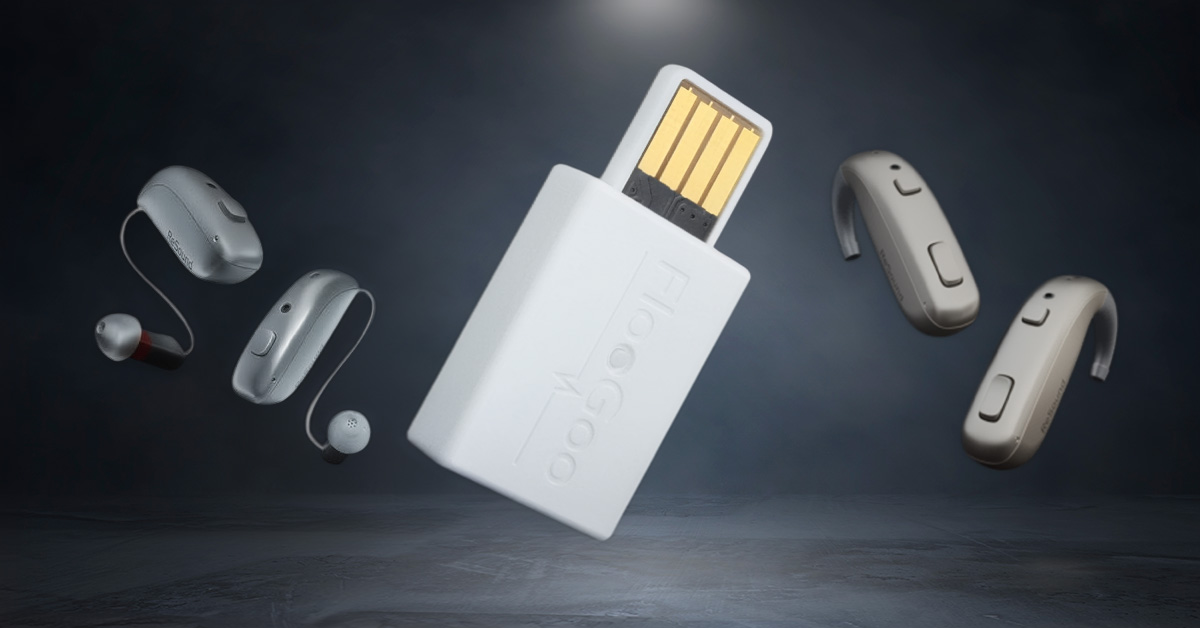
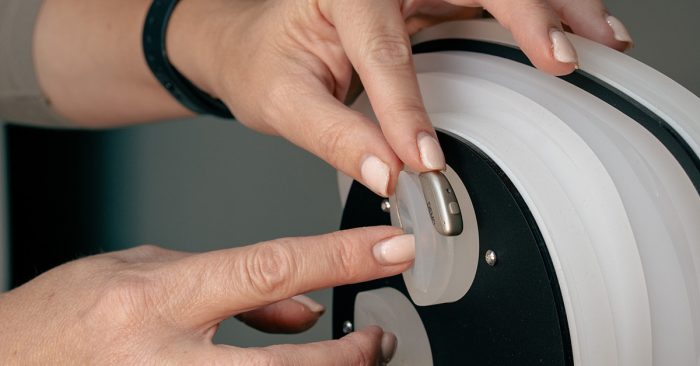
At Alto, we tested the FlooGoo FMA120 with ReSound Vivia hearing aids on a computer, using it to listen to music and watch video.
The FMA120 is a small USB-A audio adapter. It can connect compatible hearing aids to computer audio using paired Bluetooth LE Audio or Auracast broadcast. These are different modes, so hearing-aid compatibility and setup need checking for the mode you intend to use.
In this article
Paired audio and Auracast broadcast
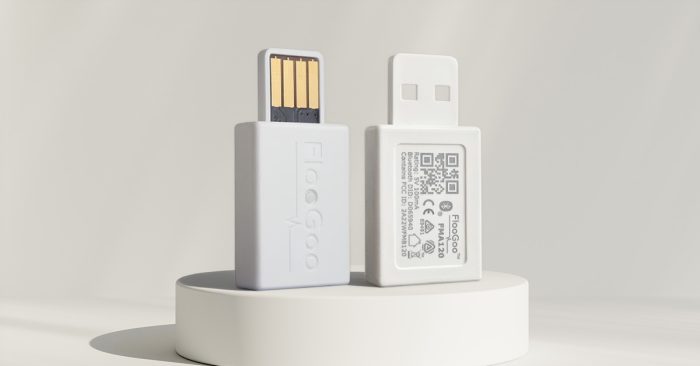
A paired LE Audio connection sends sound to your hearing aids. Auracast broadcasts sound for compatible receivers to join. Having LE Audio does not by itself confirm that a hearing aid can receive an Auracast broadcast.
Our Auracast guide explains broadcast listening and how it differs from other hearing-aid connections.
Will it work with your hearing aids?
ReSound Vivia is the model we tested. For other hearing aids, check the exact model and firmware against the manufacturer’s current compatibility guidance. Firmware is the software installed on the hearing aids and dongle.
Check paired computer audio and Auracast reception separately. The manufacturer listing a model for LE Audio use does not confirm every mode, microphone function or computer combination.
Setting it up
Use the FMA120 user guide for the connection mode you need. A USB-C computer needs a suitable USB-C to USB-A adapter.
- Open FlooCast and check the dongle’s firmware and audio mode.
- For paired LE Audio, follow the guide’s hearing-aid pairing instructions. For Auracast, choose Broadcast mode and follow the receiving hearing aids’ joining instructions.
- For a hearing-aid broadcast, ensure a standard-quality stream is available. The guide explains the relevant broadcast quality settings.
- Select FMA120 as the computer’s audio output and play some audio.
- Check that both aids receive the sound and that the listening level is comfortable.
If pairing fails, the guide covers competing phone connections and interference from USB devices or docks.
Calls, delay and television use
Receiving sound from a video call and sending your voice back are separate requirements. Auracast broadcast is one-way. For calls, check the microphone setting in your meeting app as well as the listening connection.
Delay varies with the connection mode, settings and receiving devices. The dongle’s quoted latency is not a guarantee of total delay through your hearing aids. Check speech and picture together on your own setup.
A television needs to support USB audio output to use the FMA120 this way. A USB socket used for storage or power is not enough. Check the television’s specification before ordering.
Price and where to buy
The price fluctuates. Amazon UK listed it at £47.99 when checked on 14 October 2026; check the current price before ordering.
Check the FlooGoo FMA120 price on Amazon.
As an Amazon Associate, Alto Hearing may earn a small commission from qualifying purchases. This does not affect the price you pay or the products we recommend.
Help with your connection
Request a call back to discuss connecting your hearing aids to a computer. Tell us which hearing aids and computer you use, and whether you need music, video or calls.